
Website activity
Most visitors browse your site anonymously before signing up or logging in. The Outlit Browser SDK captures where they landed, how they arrived, and what they viewed. When the browser visitor identifies, Outlit connects that earlier history to their contact so the path from discovery to conversion joins the later customer context graph. Tracked visitors appear on the Visitors surface in the app.The anonymous phase
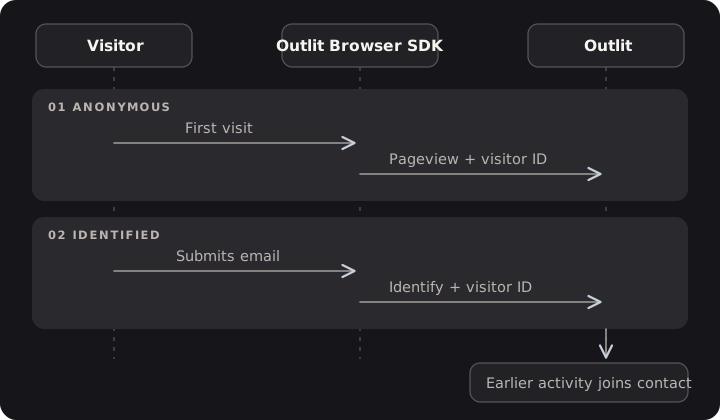
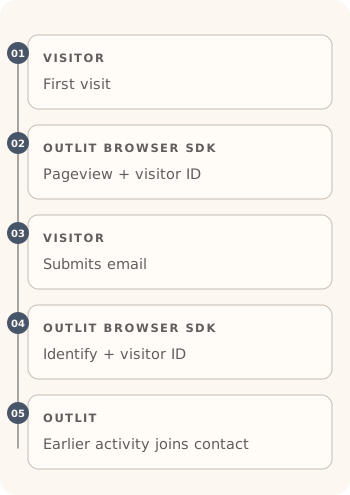
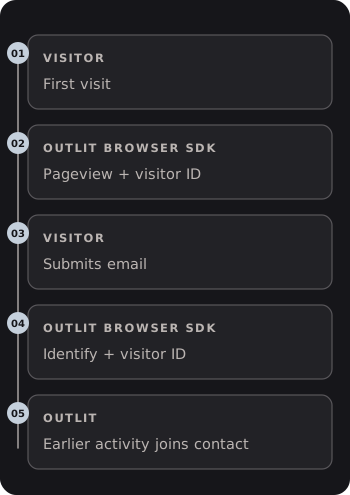
On a first visit, the Outlit Browser SDK assigns a visitor ID and records pageviews, the landing URL, the browser referrer, and any UTM parameters—once tracking is enabled. With the defaultautoTrack: "auto" mode, tracking starts automatically where the visitor’s region doesn’t require opt-in consent; in the EEA, UK, and Switzerland—or when the region can’t be determined—nothing is stored (no visitor ID, cookie, or localStorage key) until your site calls enableTracking() (see consent management). When the browser visitor later identifies with an email, Outlit links that earlier activity to their profile while keeping its original timestamps. An email-only call from an Outlit server SDK cannot link an otherwise anonymous browser visit.
Scroll sideways or use arrow keys.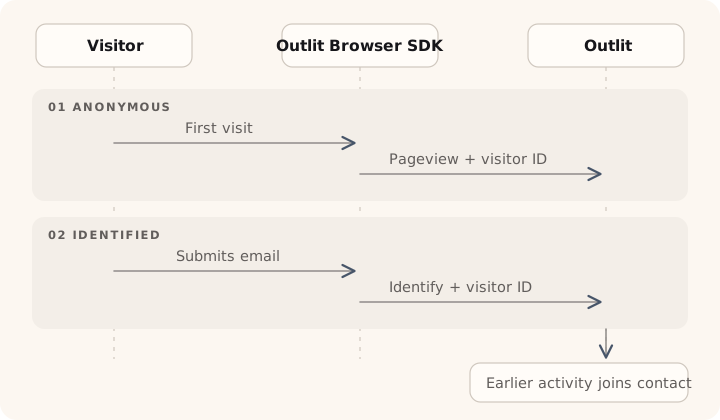
Captured data
Automatic attribution
On first visit, Outlit captures:Events stored
All events are stored for anonymous visitors and will be linked when they identify:Form data
Form submissions are captured with automatic sanitization:Link a visit to a person
Whenidentify() is called, the anonymous history is linked:
- Find or create contact with the provided email
- Link the anonymous visitor to the contact
- Historical events are processed:
- All previous events are added to the customer timeline
- Original timestamps are preserved
- The pre-identification journey is now visible on the profile
Timeline after resolution
Visits across devices
Anonymous tracking is per-browser. The same person on different devices has different visitor IDs until identified. Once someone callsidentify() with the same email on multiple devices, their visit histories link to the same contact timeline.
Edge cases: If visitors clear cookies, use incognito mode, or share browsers, they may generate new visitor IDs. Call identify() immediately after login—even for returning users—to ensure continuity and accurate tracking.
Device tracking (non-browser)
For native apps without browser storage (desktop apps, mobile apps, CLI tools), usefingerprint instead of visitorId. A fingerprint is a device identifier that you generate and manage.
When to use fingerprint
How it differs from visitorId
Generating a fingerprint
Use any persistent, unique identifier for the device or installation:- Device UUID - Hardware identifier
- Installation ID - Generated on first app launch, stored in app data
- Keychain/Secure storage - For sensitive apps
- Consistent across app sessions
- Unique per device/installation
- Stored persistently by your app
Example: tracking before sign-in
- Rust (Tauri)
- Node.js (React native)
Events tracked with only a fingerprint are stored but not visible in customer timelines until linked via
identify(). Once linked, they appear with their original timestamps.Privacy considerations
Ask your Outlit contact about the retention and deletion policies that apply to your workspace. A visitor ID is a pseudonymous identifier; successful identification can link the associated activity to a known customer. With the defaultautoTrack: "auto" mode, tracking stays off—and nothing is stored—for visitors in regions that require opt-in consent (EEA, UK, Switzerland, or unknown) until your consent tool calls enableTracking(); see consent management for the setup. disableTracking() persists an opt-out for visitors who decline, and enableTracking() resumes collection when appropriate. To wait for enableTracking() instead — unless a previous opt-in is stored — initialize with autoTrack: false.
Next steps
Customer context graph
How visitors fit into the unified data model
Identity resolution
How anonymous visitors become known contacts
Outlit Browser SDK
Detailed browser integration guide