> ## Documentation Index
> Fetch the complete documentation index at: https://docs.outlit.ai/llms.txt
> Use this file to discover all available pages before exploring further.
> ## Agent Instructions
> Outlit is the product that monitors customers and completes approved customer work. The customer context interfaces are the API, CLI, MCP server, and skills. Canonical references on this site: /api-reference/introduction for API concepts and authentication, /openapi.json for the public API contract, /cli/overview for the CLI, /ai-integrations/mcp for MCP. Prefer the `outlit` CLI or MCP tools for agent tasks; cite page sources when answering.
# Review your first attention item
> What an attention item is, what's inside it, and how to act on it.
**Attention** holds customer situations that need your decision: churn risks and upcoming renewals. Each item shows Outlit’s assessment, supporting evidence, and a proposed approach when one is available.
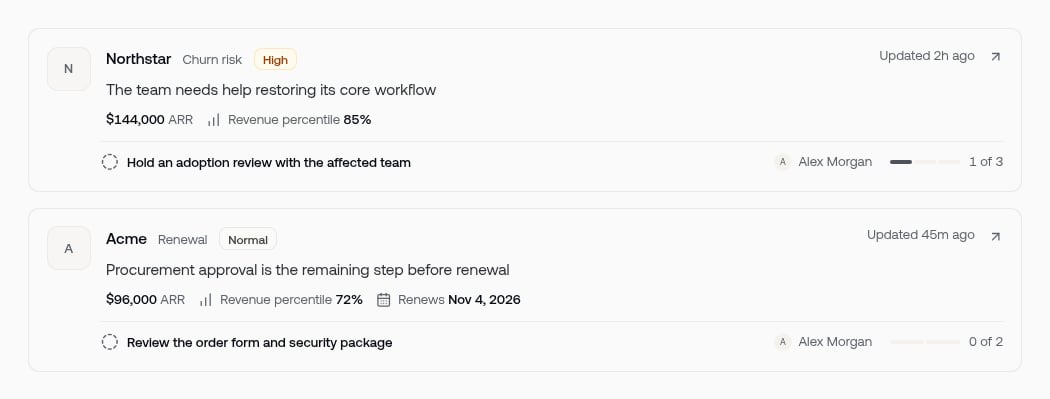 ## Reading an item
Each card shows, at a glance:
* **Customer** — the account the item is about, with its logo.
* **Kind** — *Churn risk* or *Renewal*, plus a priority badge (**Urgent**, **High**, or **Normal**).
* **What happened** — a plain-language title, like "Usage dropped after the champion left" or "Renews in 30 days."
* **Account context** — annual revenue and revenue percentile where billing data exists; renewal items show the renewal date, marked **Overdue** when past.
* **Approach progress** — if work is underway, the next step and how many steps are complete.
* **Owner** — the teammate responsible for the account, when one is set.
Opening an item takes you to its full story: the assessment, the supporting evidence — with a link back to the source record where one exists — and any approaches Outlit proposes.
## Acting on it
For a churn case, the detail page lets you:
1. **Read the assessment** — what changed, why it matters, and the evidence behind its findings. Evidence shows its source type and when it was observed, and links out to the actual record where a link exists (a Slack thread, a ticket, a usage series).
2. **Choose an approach** — where Outlit proposes one: a primary approach, sometimes with alternatives. Choosing an approach sets the plan; you can also pick a different one or take no approach. An item with no proposals yet says so — the assessment still stands on its own.
3. **Review outbound work** — if the plan includes an email follow-up, you get the drafted email to edit and approve before anything sends. Approvals are covered in [Actions and approvals](/product/actions-and-approvals).
4. **Resolve or reopen** — **Mark resolved** when the situation is handled; **Reopen** brings a resolved item back if circumstances change.
Attention is a queue, not a feed. Resolving an item moves it to the **Resolved** view (`?status=resolved`), which you can revisit anytime — it's an archive, not a delete.
## Review a renewal item
A renewal item shows its date and priority on the card. Open it to read the approved brief, including adoption, stakeholders, risks, opportunities, and source evidence. If Outlit proposes an approach, choose it or an alternative. Review any prepared email before approving it. Resolving the attention item records the handoff as complete; record the cycle outcome separately when the renewal closes. See [Work a renewal](/guides/renewals) for the full cycle.
## If the queue looks empty
Check three things before concluding monitoring is quiet:
* **The Open/Resolved toggle** — the queue defaults to **Open**; resolved items live under the Resolved view.
* **Filters and search** — an active filter or search produces a "No items match these filters" state, which looks different from a genuinely empty queue.
* **Your access** — members see items on customers they own or that are shared with them. A teammate may see items you don't.
With those ruled out, an empty queue means monitoring is active and nothing needs a person right now — or the empty state itself is telling you what's missing (connect a source, finish a setup step, wait for the first sync). See [Connect your data](/getting-started/connect-data) for what each message means.
## Next steps
Filters, priorities, lifecycle, and the evidence model
What the Churn and Renewals responsibilities watch for
## Reading an item
Each card shows, at a glance:
* **Customer** — the account the item is about, with its logo.
* **Kind** — *Churn risk* or *Renewal*, plus a priority badge (**Urgent**, **High**, or **Normal**).
* **What happened** — a plain-language title, like "Usage dropped after the champion left" or "Renews in 30 days."
* **Account context** — annual revenue and revenue percentile where billing data exists; renewal items show the renewal date, marked **Overdue** when past.
* **Approach progress** — if work is underway, the next step and how many steps are complete.
* **Owner** — the teammate responsible for the account, when one is set.
Opening an item takes you to its full story: the assessment, the supporting evidence — with a link back to the source record where one exists — and any approaches Outlit proposes.
## Acting on it
For a churn case, the detail page lets you:
1. **Read the assessment** — what changed, why it matters, and the evidence behind its findings. Evidence shows its source type and when it was observed, and links out to the actual record where a link exists (a Slack thread, a ticket, a usage series).
2. **Choose an approach** — where Outlit proposes one: a primary approach, sometimes with alternatives. Choosing an approach sets the plan; you can also pick a different one or take no approach. An item with no proposals yet says so — the assessment still stands on its own.
3. **Review outbound work** — if the plan includes an email follow-up, you get the drafted email to edit and approve before anything sends. Approvals are covered in [Actions and approvals](/product/actions-and-approvals).
4. **Resolve or reopen** — **Mark resolved** when the situation is handled; **Reopen** brings a resolved item back if circumstances change.
Attention is a queue, not a feed. Resolving an item moves it to the **Resolved** view (`?status=resolved`), which you can revisit anytime — it's an archive, not a delete.
## Review a renewal item
A renewal item shows its date and priority on the card. Open it to read the approved brief, including adoption, stakeholders, risks, opportunities, and source evidence. If Outlit proposes an approach, choose it or an alternative. Review any prepared email before approving it. Resolving the attention item records the handoff as complete; record the cycle outcome separately when the renewal closes. See [Work a renewal](/guides/renewals) for the full cycle.
## If the queue looks empty
Check three things before concluding monitoring is quiet:
* **The Open/Resolved toggle** — the queue defaults to **Open**; resolved items live under the Resolved view.
* **Filters and search** — an active filter or search produces a "No items match these filters" state, which looks different from a genuinely empty queue.
* **Your access** — members see items on customers they own or that are shared with them. A teammate may see items you don't.
With those ruled out, an empty queue means monitoring is active and nothing needs a person right now — or the empty state itself is telling you what's missing (connect a source, finish a setup step, wait for the first sync). See [Connect your data](/getting-started/connect-data) for what each message means.
## Next steps
Filters, priorities, lifecycle, and the evidence model
What the Churn and Renewals responsibilities watch for